Company Overview
In this area, you can establish new companies and link them to your CRM contacts. This feature essentially functions as a grouping mechanism for organizing contacts, allowing you to associate a group of contacts with a specific company. By doing so, you can efficiently track the consolidated activities of all contacts related to a particular company, streamlining your CRM management process and providing valuable insights into each company’s interactions.
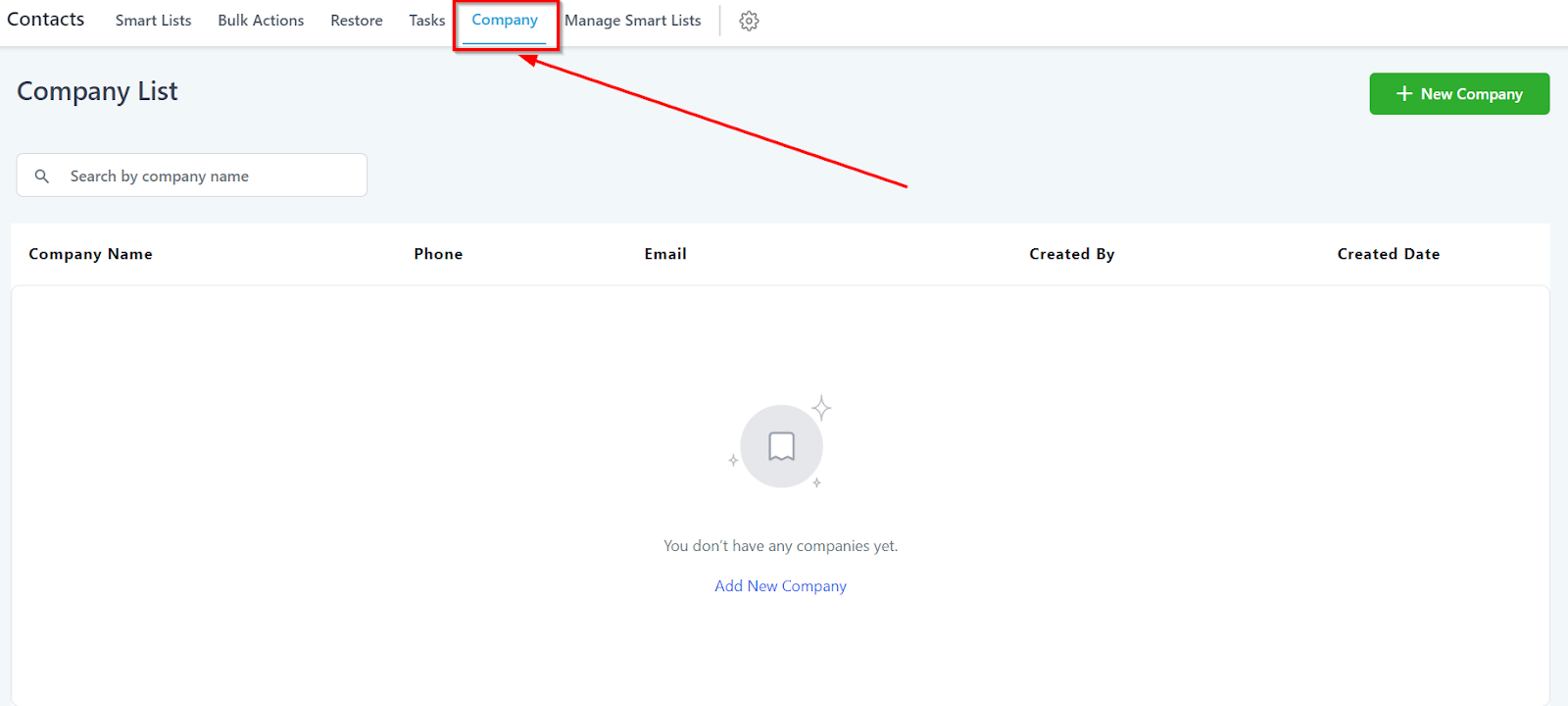
Add New Company
To establish a new company within your CRM, navigate to this particular tab. This will direct you to a dedicated page where you can input the necessary company details. By completing the required fields, you will successfully create a new company record that can be managed and associated with relevant contacts in your CRM system.
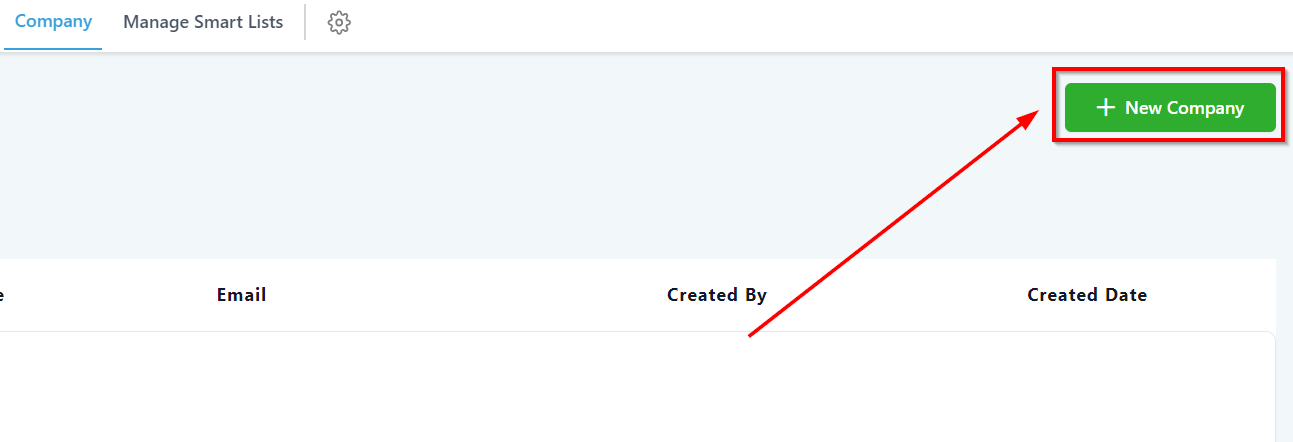
Adding Information
To create a new company inside of your CRM, click on the green ‘+ New Company’ button on the top right of the page. A popup will appear for you to fill in your company details.
Please Note:
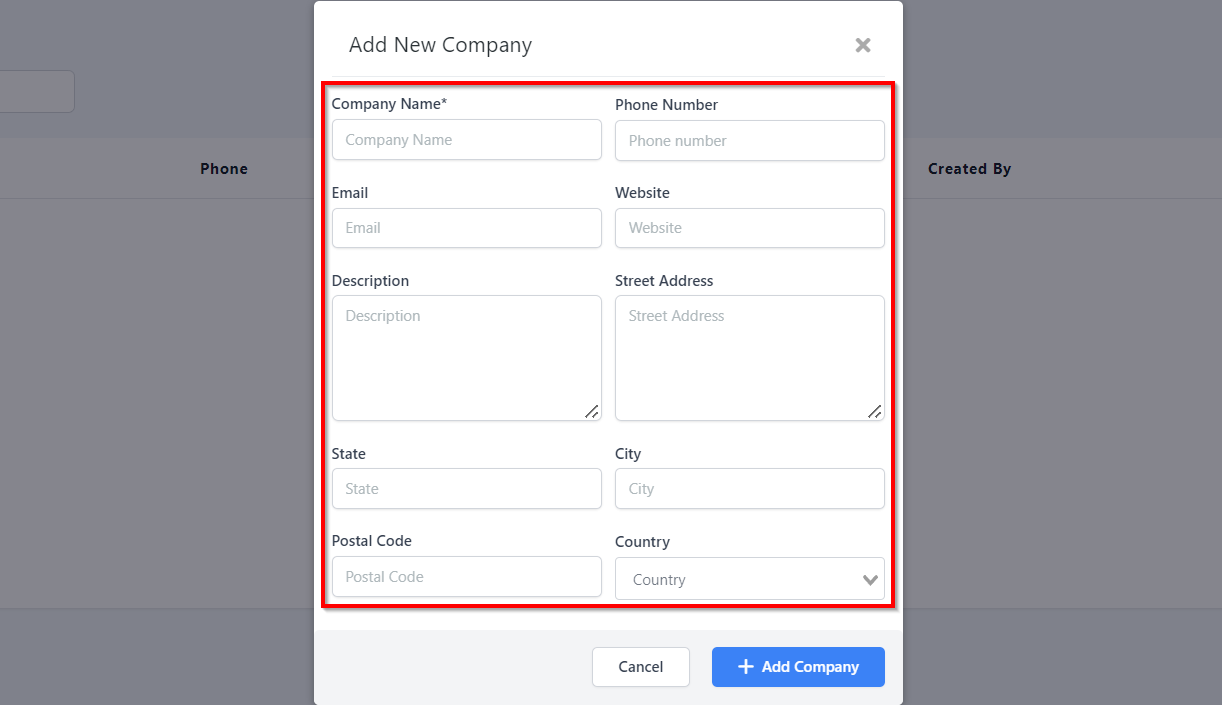
The following fields are to be filled out when creating a Company:
Company name (mandatory): Open text field
Phone number: Optional field
Email: Optional field
Website: Optional field
Description: Optional field
Street address: Optional field
City: Optional field
Postal code: Optional field
Country: Optional field
Validation: For mandatory fields only (Phone and Email are validated only for correct format, not checked whether they are actual phone numbers or E-mail addresses).
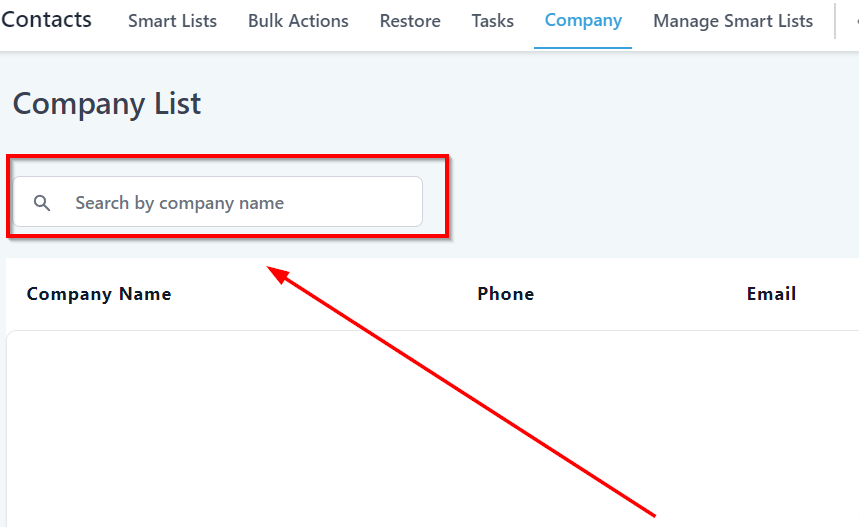
Search Bar
The search bar on our system simplifies the process of looking for a specific company. With just one entry in the search box, you can obtain information about a specific company. No grand undertaking necessary; all you need to do is type in the corresponding company name and you’ll have your result. This makes searching for a specific company effortless, letting you get straight to investigating particular company information and all conversations related to them.
Company’s List
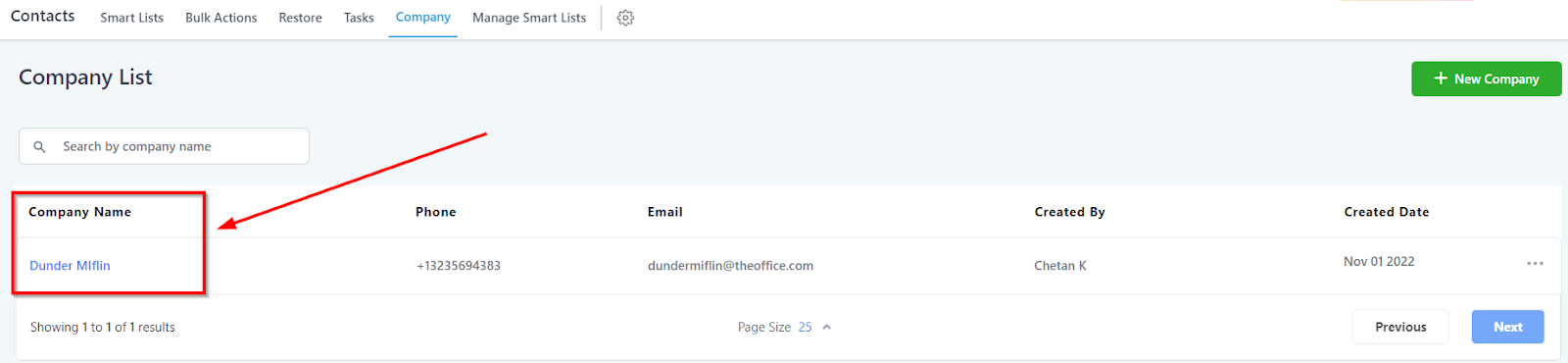
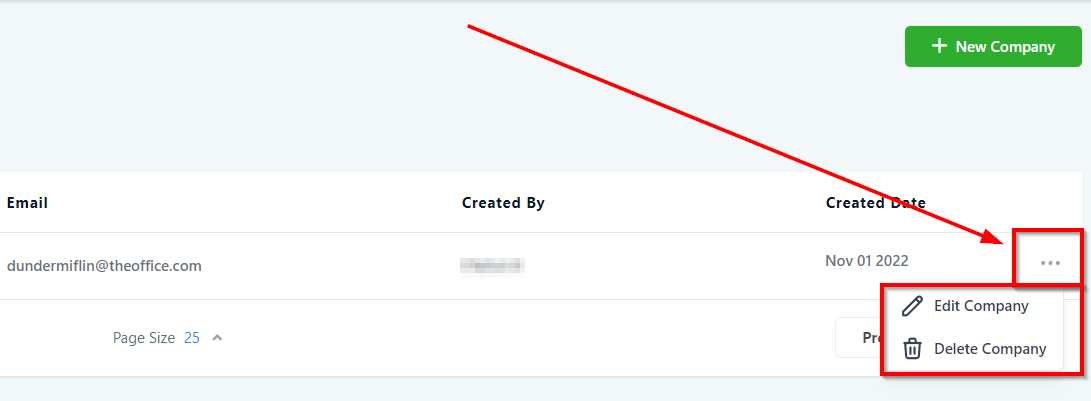
When you open the company section within your CRM, you will see a list of all the companies you have created. There are five columns here that you will see information about specific companies. From left to right, you will see the company name, phone, email, who the company was created by, and when the company was created in your CRM. Clicking on the three dots to the far right of the company will give you the ability to edit or delete a company.
Name
Here you can view all of the companies you have created in the system. Click on the company’s name to view the company’s details and contacts associated with this company.
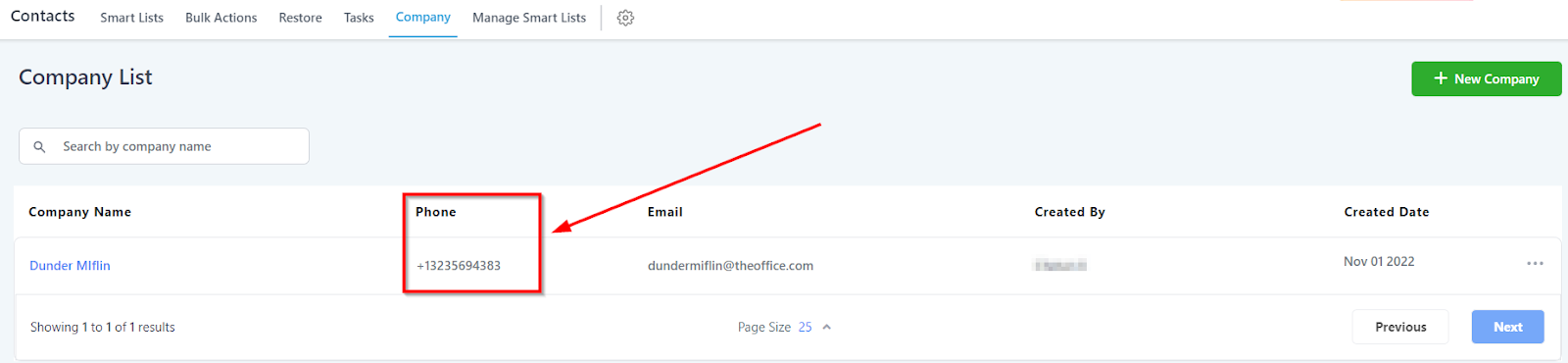
Phone
Here you can see the phone number associated with each company on the list.
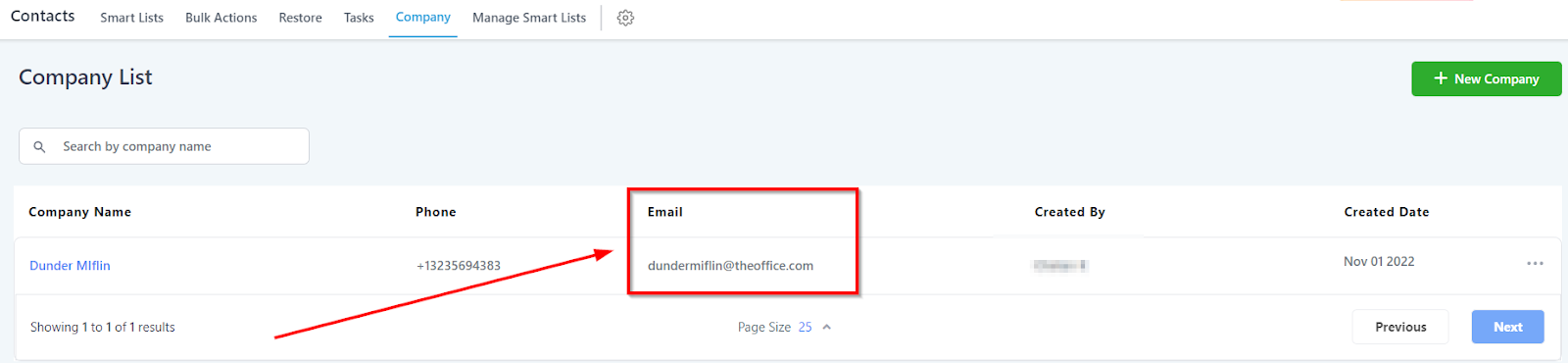
The email address you have saved with each company will be shown here.
Created By
Here you can find out who in your team has created each company on the list. If you have multiple users it would be helpful to know who added each entry.

Created Date
Shows the date when each company was added to the system.

Actions
With this three-dot menu, you can perform several actions for each company on the list. Let’s discuss each action;
Edit company – This allows you to make changes to any of the company’s information here in the list. Click “Update” to save it!
Delete Company – This allows you to Delete one of the companies from the list.
Please Note: Deleting a company does not delete its contacts from your contacts list, it only removes the Company information from that contact’s Company tab.
Company’s Details
For you to be able to access the company’s details, click on a company’s name.
How to add contacts to a company
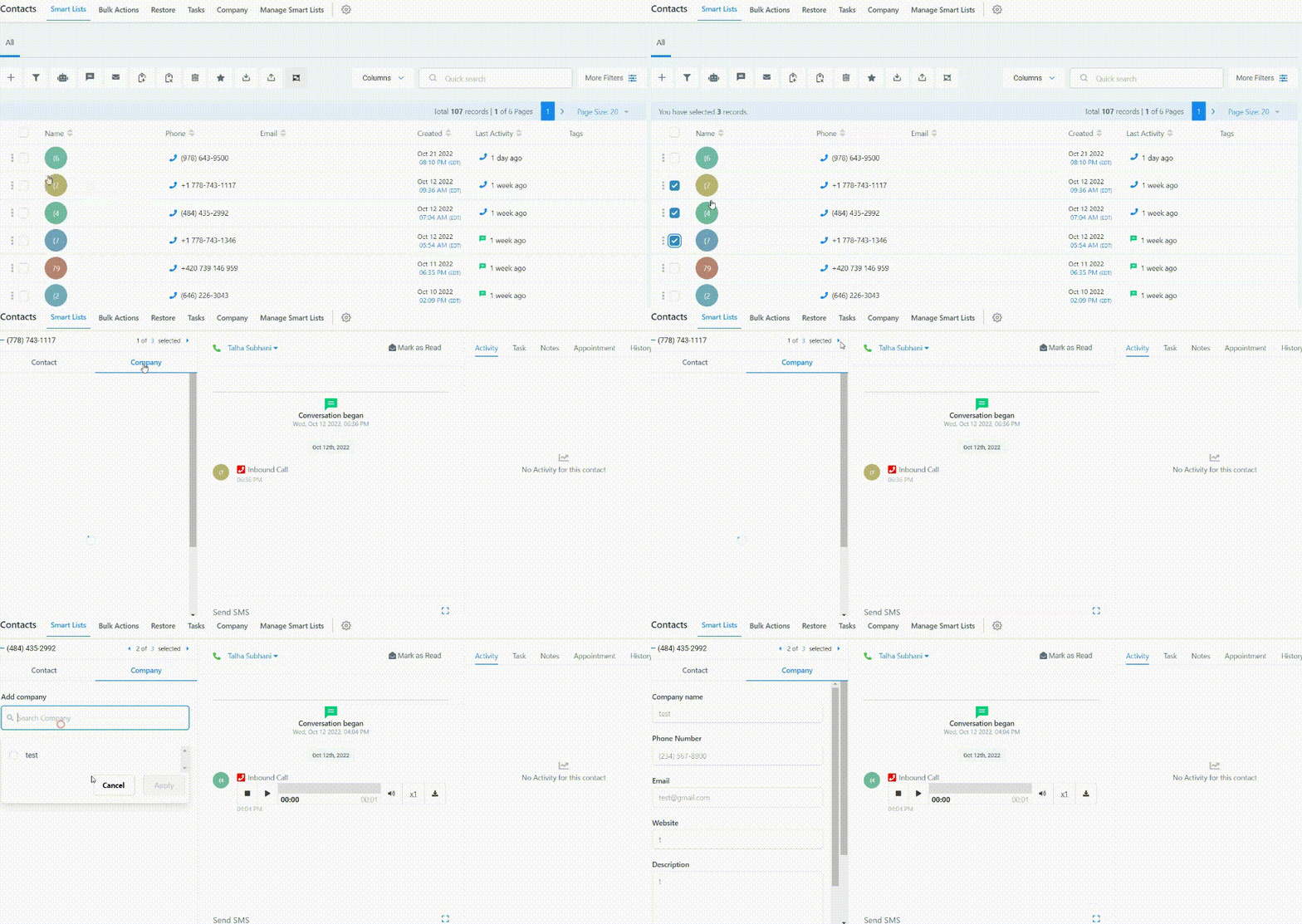
At the moment the only way to enter contacts into a Company is by manually heading into their Company tab, Searching for a company, and then adding them to it:\

You can mark multiple contacts and then switch between them for ease of adding contacts to a company in bulk:
How to remove a contact from a company
To remove a contact from a Company please head to the Company tab, click on the company you want to remove the contact from, Switch to Contacts inside the Company tab, Hit the Trash button next to the contact you want to remove from that Company When prompted to confirm, Click on Yes.
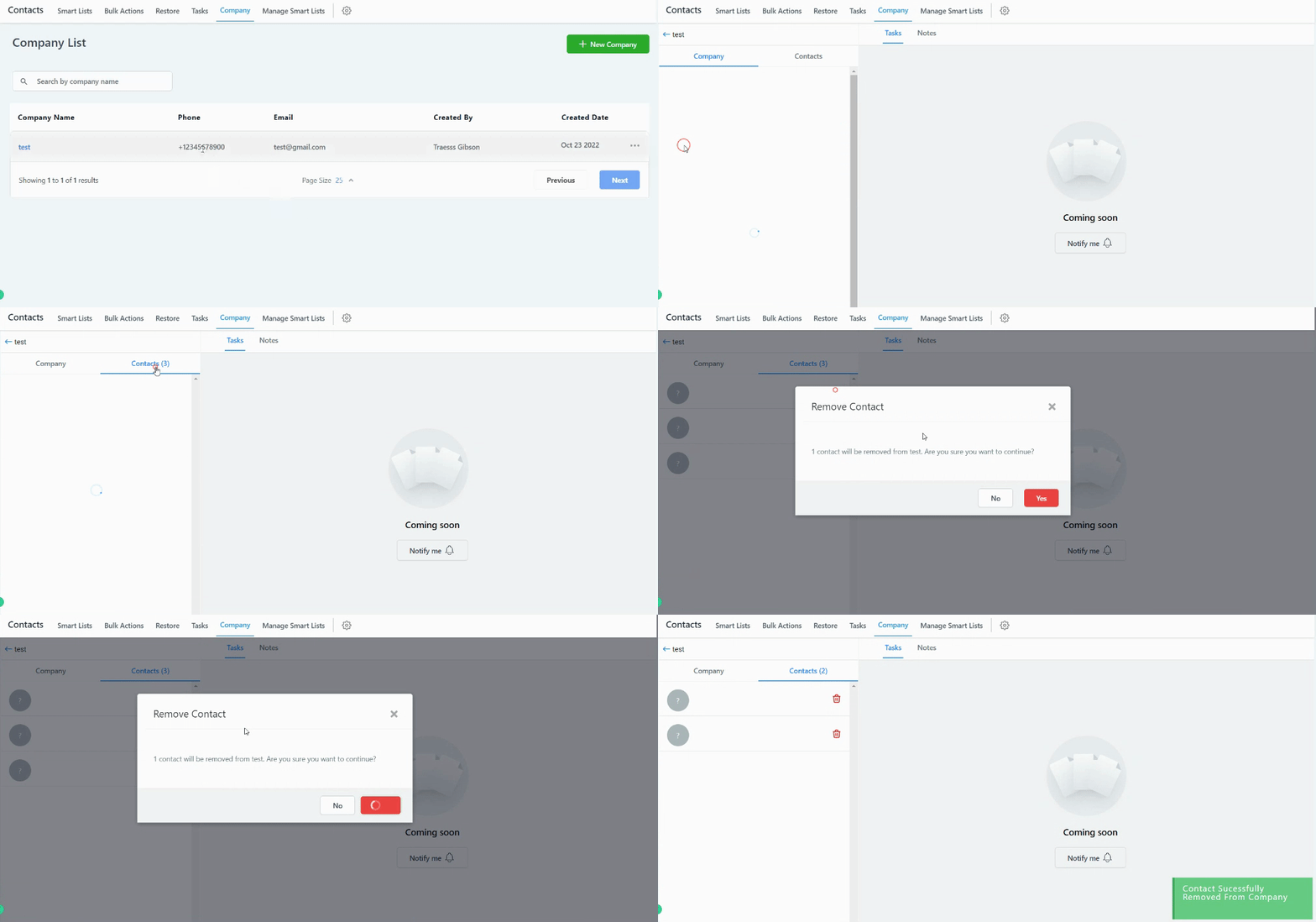
Please Note: Removing a contact from a Company does not delete the contacts from your contacts list, it only removes the Company information from that contact’s Company tab and removes them from the list of contacts in that company.
Tasks
You can see the task list associated with each of the contacts in this company. Each task is specifically designed for each contact, you need to manually add tasks for each contact.

Add Task
To assign a task to any contact within the company’s list, click on the contact’s name which directs you to the contact details. Click on the “Task” section then click on “Add Task”

Task Details
Add in the Task Details such as Title of the task, little description about the tasks you want to keep in mind, the due dates and the CRM user as an assignee.

Notes
View, edit and add notes to all the contacts linked to a company in the Company detailed page.

Click the “+Add Note” button to create a new note for the selected company record.

This dropdown allows you to select the contact records associated with the company record.

Start typing the notes you want to keep in mind.

Use this search bar to look for a specific Note.

Filter gives you the ability to view specific notes. you can filter notes by the dates they were created, View Notes created for a specific contacts

Using the three dots option, you can edit or delete existing notes.
