Overview:
Call recording and tracking are essential tools for any business that relies on phone calls for sales, support, or customer service. These features allow you to record phone conversations and track various call metrics, providing valuable insights into your customer interactions.
Detailed Explanation:
- Call Recording: This feature enables you to record incoming and outgoing calls, allowing you to review conversations, assess the quality of customer service, and use recordings for training purposes.
- Call Tracking: This involves monitoring and analyzing call data, such as call volume, call duration, and caller information. This data helps you understand how your team is performing and identifies trends in customer inquiries or issues.
Practical Examples:
- A sales team can listen to recorded calls to understand what techniques are most effective in closing deals.
- Customer service teams can review calls to ensure quality standards are being met.
- Marketing teams can track call sources to measure the effectiveness of different advertising campaigns.
Setting Up Call Recording and Tracking
Overview:
Setting up call recording and tracking in the CRM is a straightforward process. This section will guide you through the necessary steps to get started.
Step-by-Step Guide:
Navigate to Account Settings:
- Find the “Settings” option located at the bottom left-hand corner of the sidebar. Click on it to proceed.
Open the Phone Numbers Tab:
- Within the Settings area, locate and click on the “Phone Numbers” tab. This is where you can manage your account’s phone numbers.
Add or Manage Phone Numbers:
To add a new phone number, follow the prompts. You can also edit existing numbers by selecting them from the list.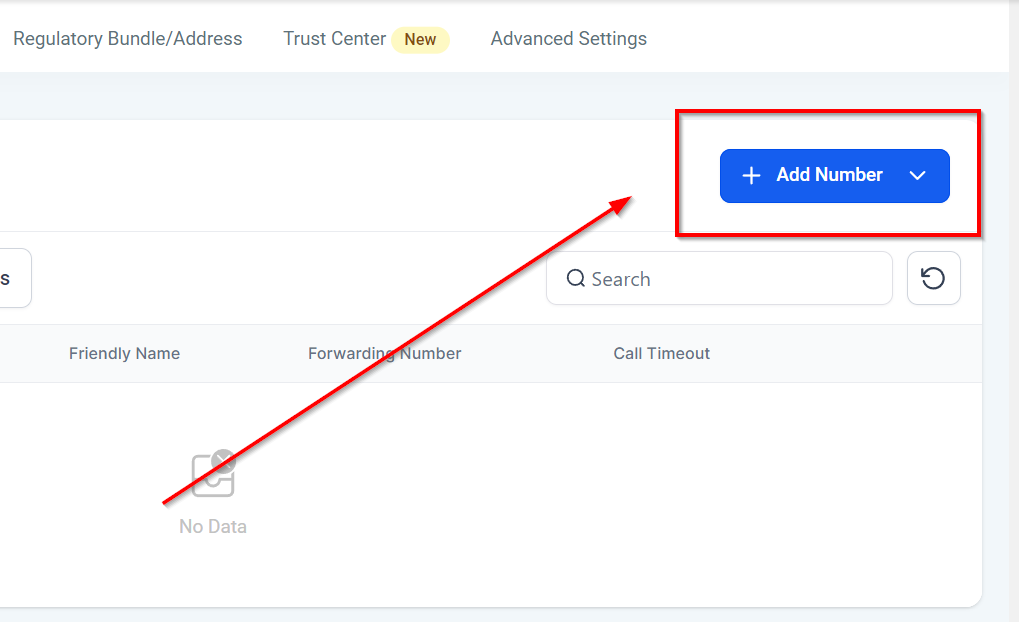
Edit configuration :
Click the three dots menu next to the phone number you wish to enable the call recording for. there you can see “Edit Configuration” option.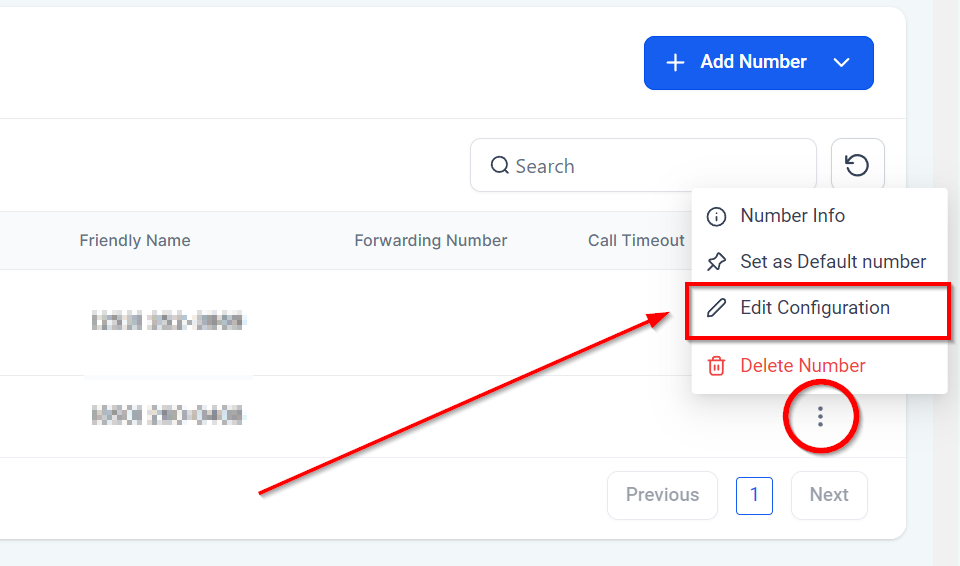
Enable Call Recording:
Scroll down towards the “Call recording” option check the box. There you have enabled the call recording for this phone number.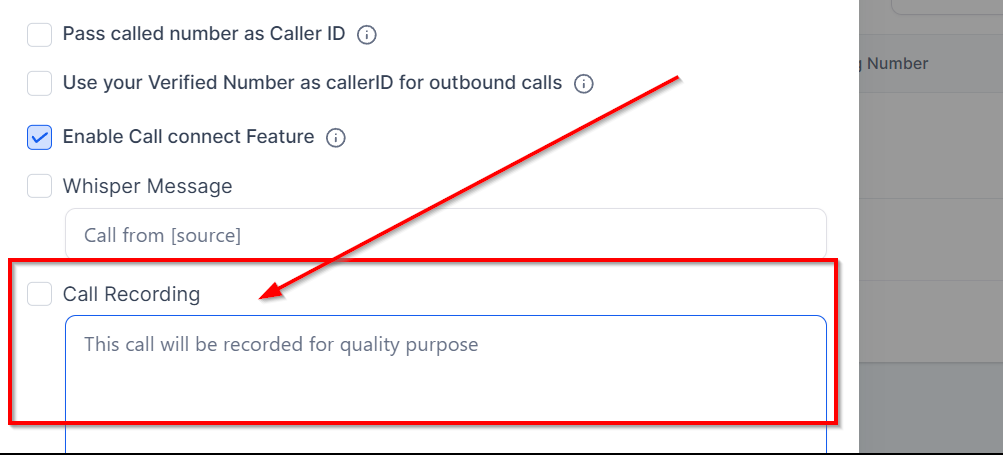
Configure Call Tracking:
- Set up a number pool to track call metrics such as duration, caller ID, and call source. This information will be invaluable for analyzing call performance.
Troubleshooting Tips:
- Ensure you have the correct permissions to add or modify phone numbers.
- If call recording is not working, check to see if it’s enabled for the specific phone number and that there are no issues with your account’s storage limit.
Frequently Asked Questions:
- Q: Is it legal to record phone calls?
- A: Laws vary by location. Generally, you must inform the other party that the call is being recorded. Always consult with legal counsel to comply with local laws.
- Q: Can I access recorded calls at any time?
- A: Yes, recorded calls are stored in the CRM and can be accessed, downloaded, or played back at any time.