An email unsubscribe page is a landing page where subscribers are directed when they choose to opt-out of receiving further emails from you. A well-designed unsubscribe page can help maintain a positive relationship with your subscribers, even as they leave your mailing list. This guide will walk you through the process of creating such a page within our CRM.
Step-by-Step Guide
Accessing the Right Account
- Ensure you’re logged into your CRM account.
- Navigate to the sub-account where you wish to create the unsubscribe page.
Creating the Unsubscribe Page
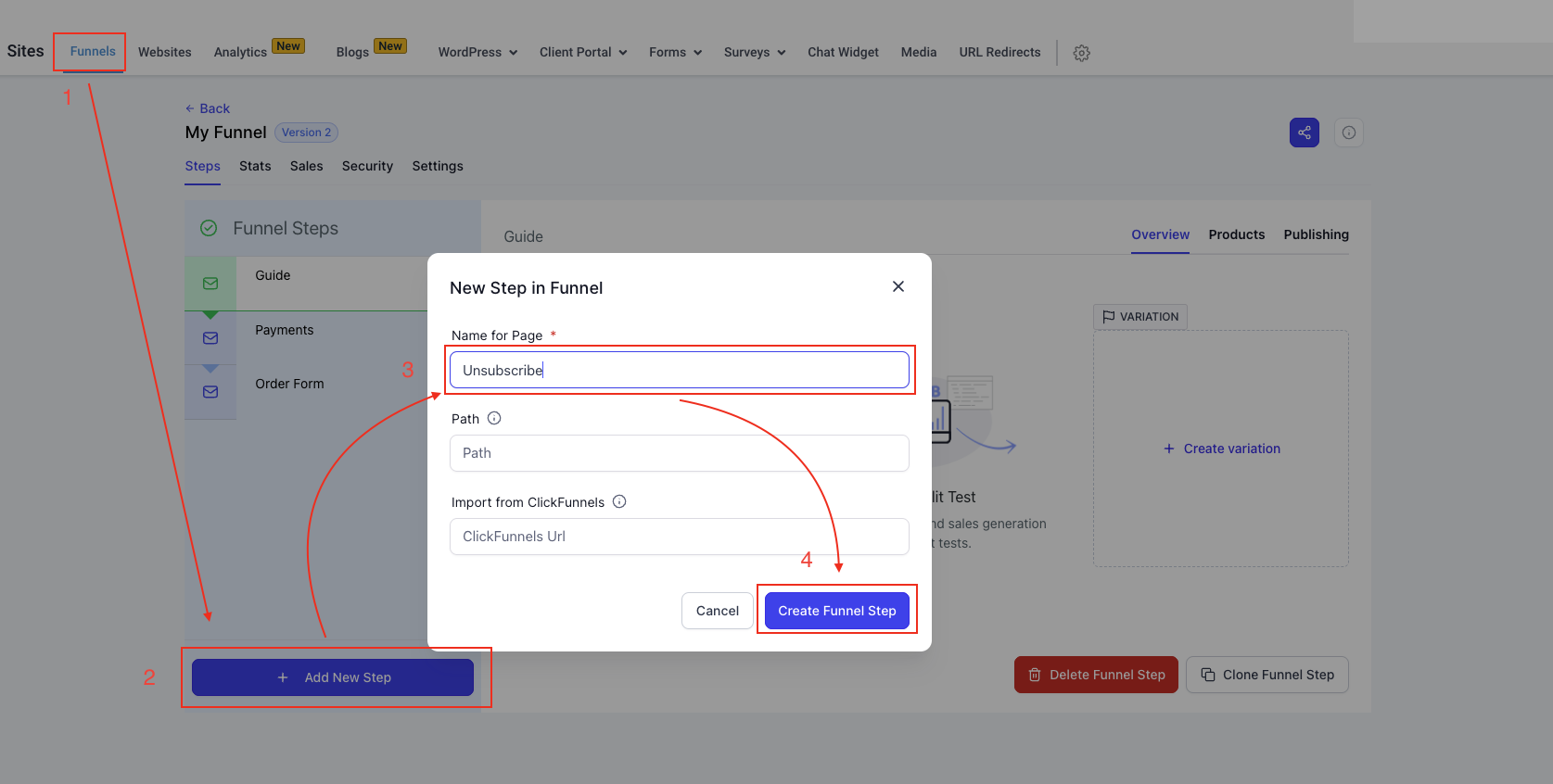
- Go to the “Sites” section from the dashboard.
- Choose between creating a new website or editing an existing one. For funnels, select “Funnels” and edit or add a new step.
- Add a new page, naming it appropriately, e.g., “Unsubscribe Page”.
Designing the Page
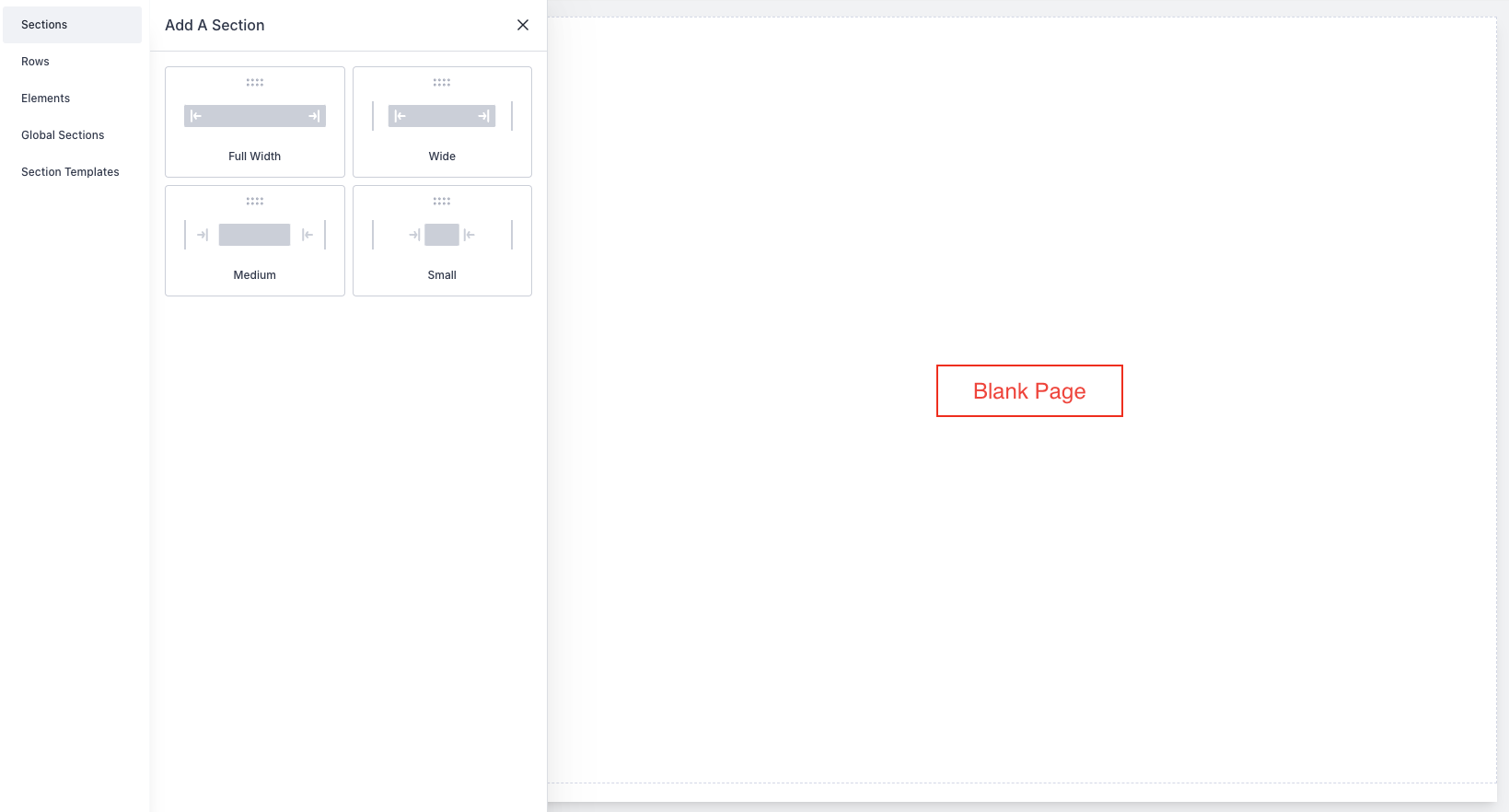
- Start with a blank page for full customization.
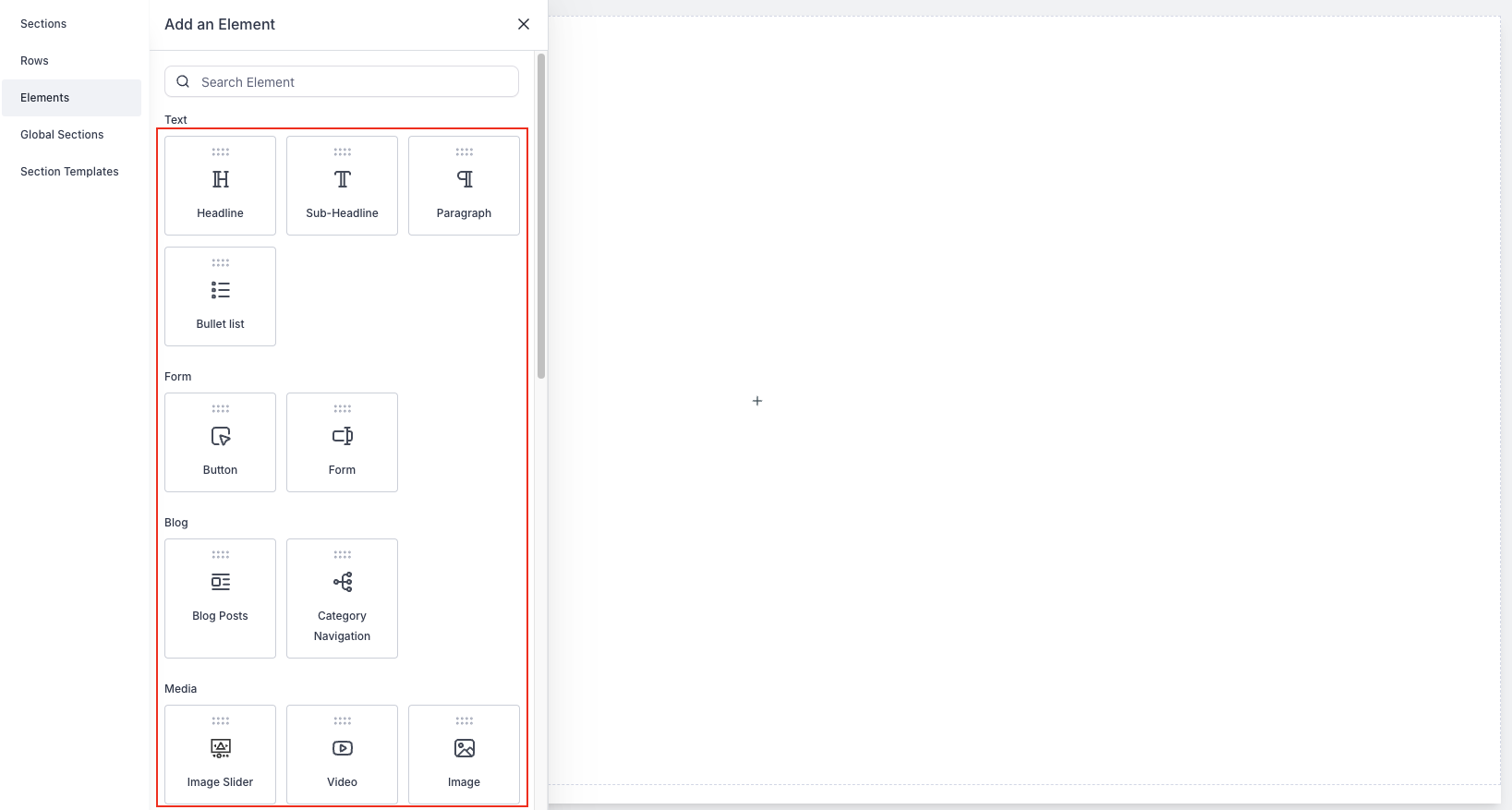
- Add elements such as a headline, sub-headline, and an image or GIF to convey the unsubscribe message. For example, your headline could be “You’re Unsubscribed,” followed by a sub-headline, “You will no longer receive emails from us, sad to see you go.”
- Customize the page’s appearance, including colors and images, to align with your brand.
Setting Up the Unsubscribe Link
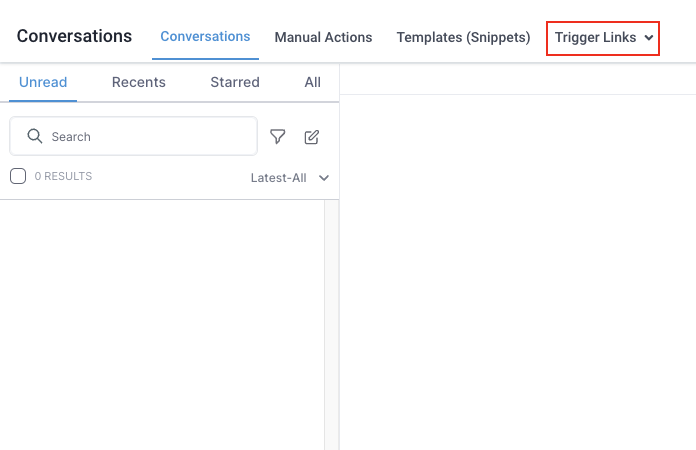
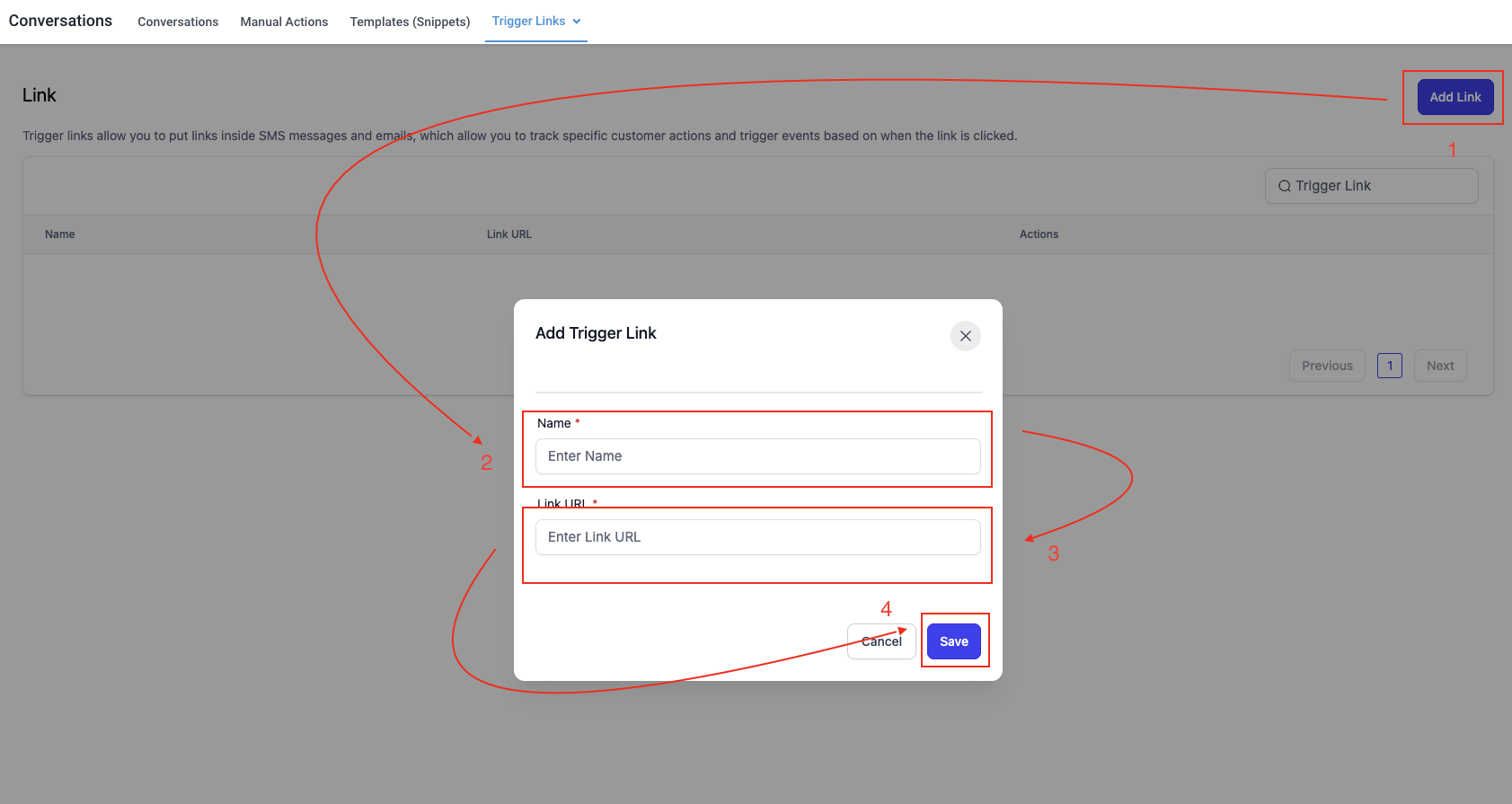
- Navigate to the “Conversations” tab and select “Trigger Links.”
- Create a new link named “Unsubscribe Link” and input the URL of your unsubscribe page.
- Save the link to use in your email templates.
Automating the Unsubscribe Process
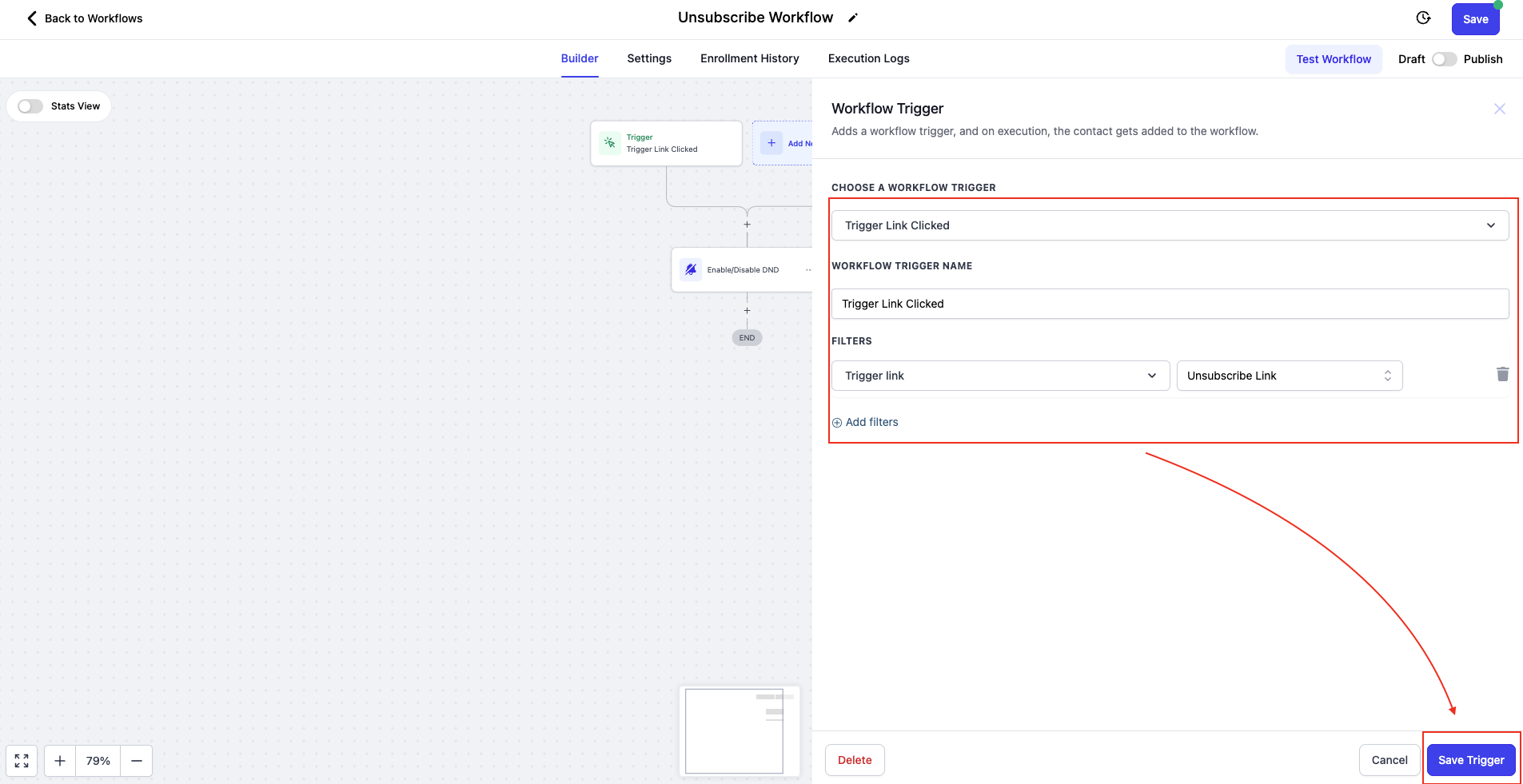
- Go to the “Automation” section and create a new workflow named “Unsubscribe Workflow.”

- Set the trigger as “Trigger Link Clicked” and select your unsubscribe link.
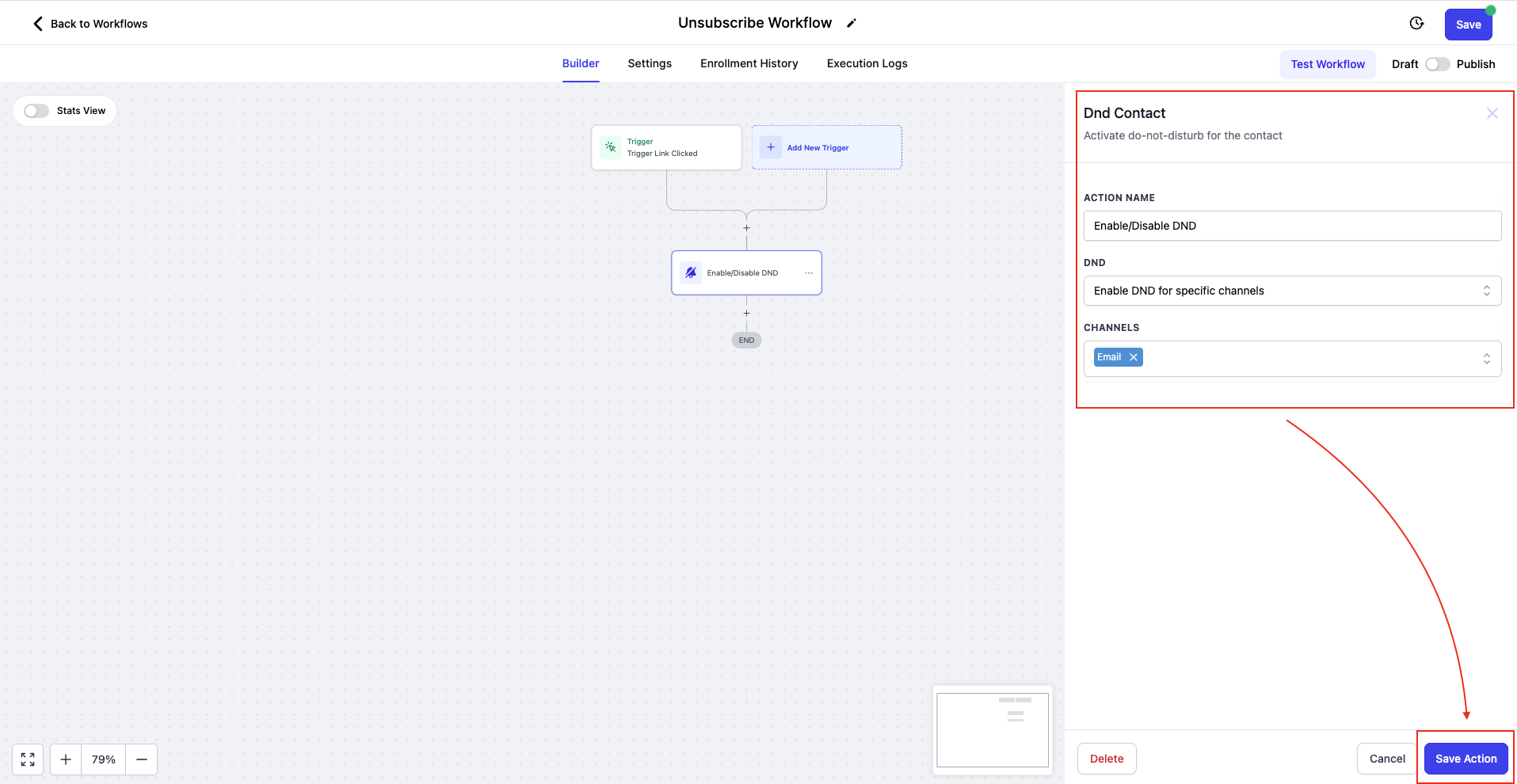
- Add an action to enable “Do Not Disturb” (DND) for all channels, ensuring the subscriber won’t receive further communications.
Integrating with Email Templates
- In the “Marketing” section, access your email templates.
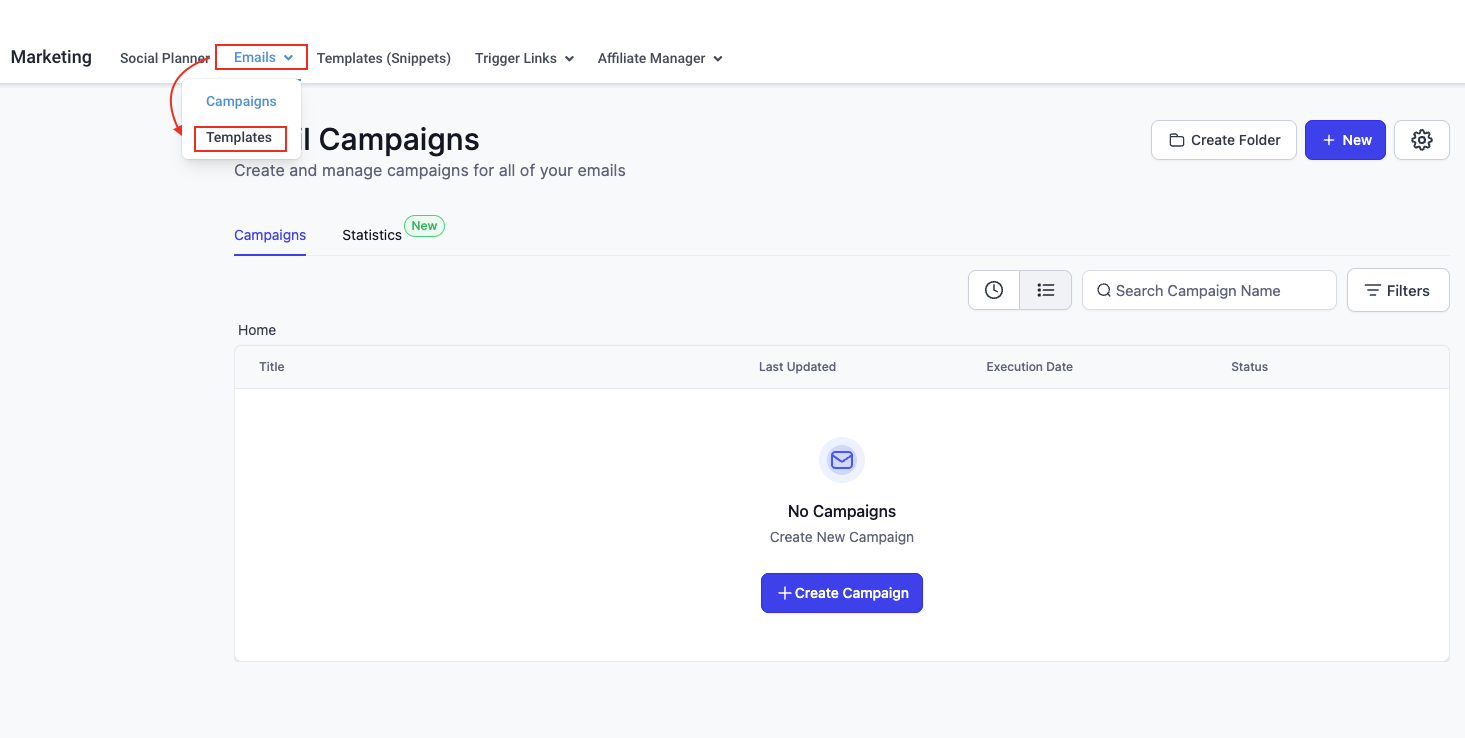
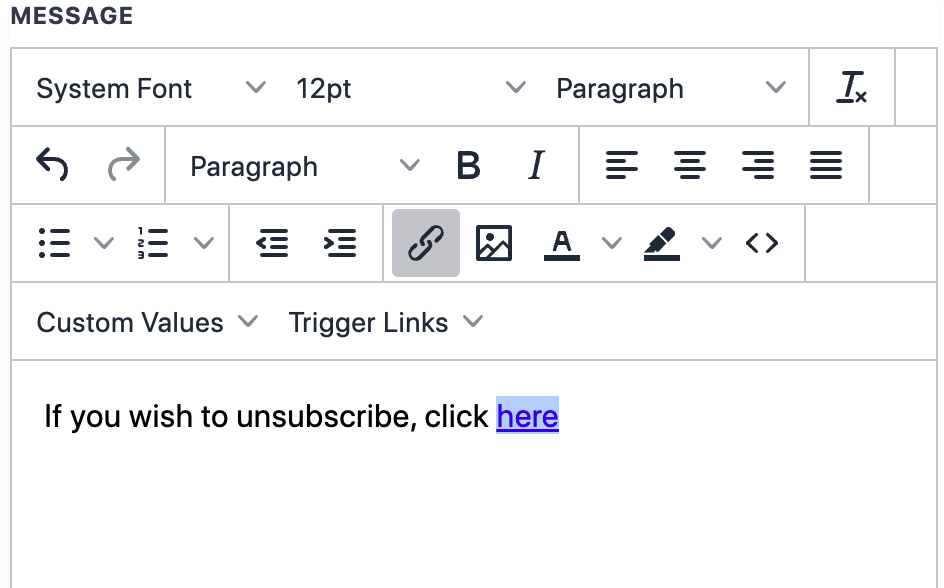
- Edit the template to include the unsubscribe link at the bottom, ensuring it’s clearly visible and accessible.
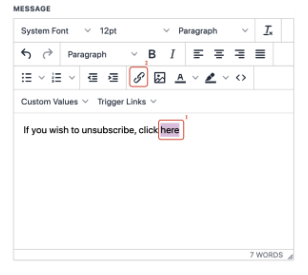
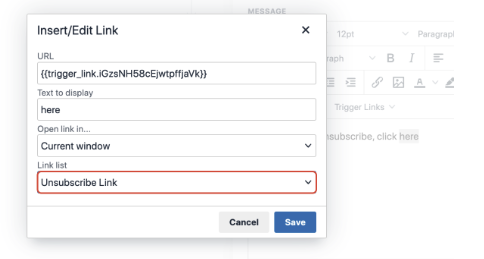
- Now anyone who click on the trigger link here will be marked DND for the email channel!
Troubleshooting and FAQs
- What if my unsubscribe page doesn’t show up correctly?Check the page URL and ensure it’s correctly linked in the trigger link settings.
- Can I customize the DND settings?Yes, you can specify which channels to apply DND to, though it’s recommended to enable it for all to comply with unsubscribe requests fully.