This article is designed to serve as both an informative resource and a practical training guide for users of the CRM, focusing on the utilization of the Save Elements feature within email templates. Intended for users ranging from beginners to advanced, this guide aims to streamline your workflow by introducing you to a feature that allows for the quick reuse of elements across your email templates. Whether you’re crafting headers, footers, or incorporating social icons, this feature is set to enhance your efficiency significantly.
Understanding the Save Elements Feature
Overview
The Save Elements feature is a recent addition to the CRM, specifically tailored for email template customization. This functionality enables users to save frequently used elements within their email designs for easy access and reuse in future templates. It’s a simple yet powerful tool designed to save time and ensure consistency across your email communications.
How to Use the Save Elements Feature
To leverage this feature effectively, follow these steps:
Accessing the Feature:
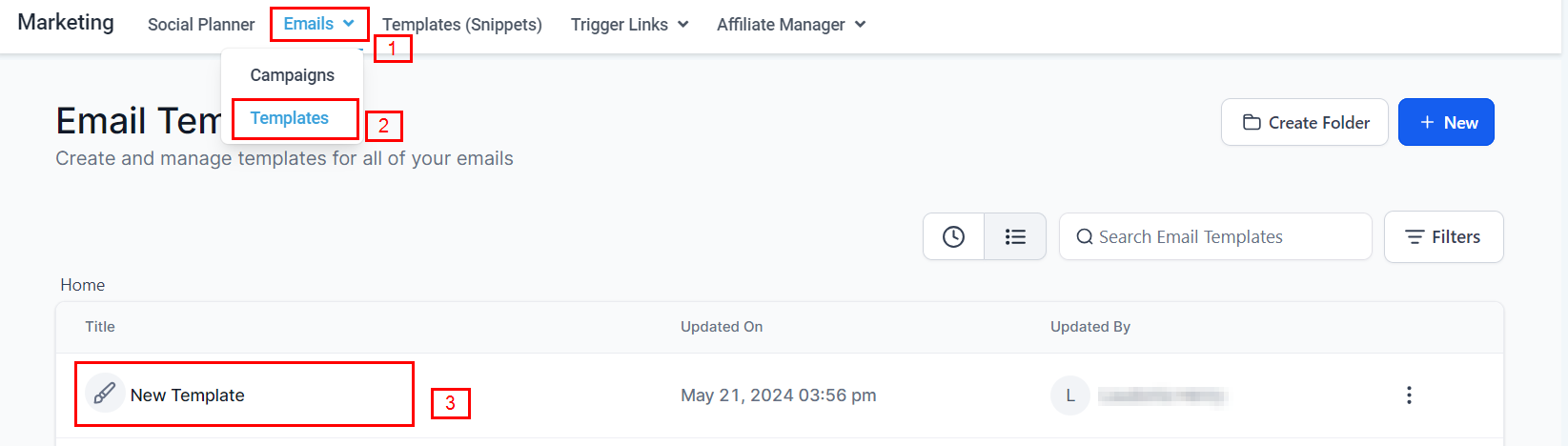
- Navigate to one of your email templates within the CRM.
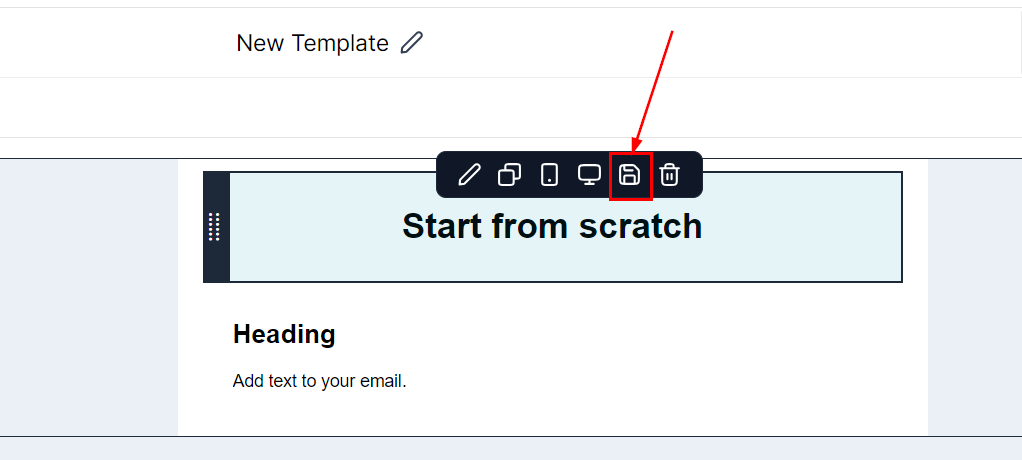
- Hover over an element you wish to save, such as a header, footer, or image. You’ll notice a save icon appearing near the element.
Saving an Element:
- Click on the save icon. This action saves the element, making it accessible for future use.
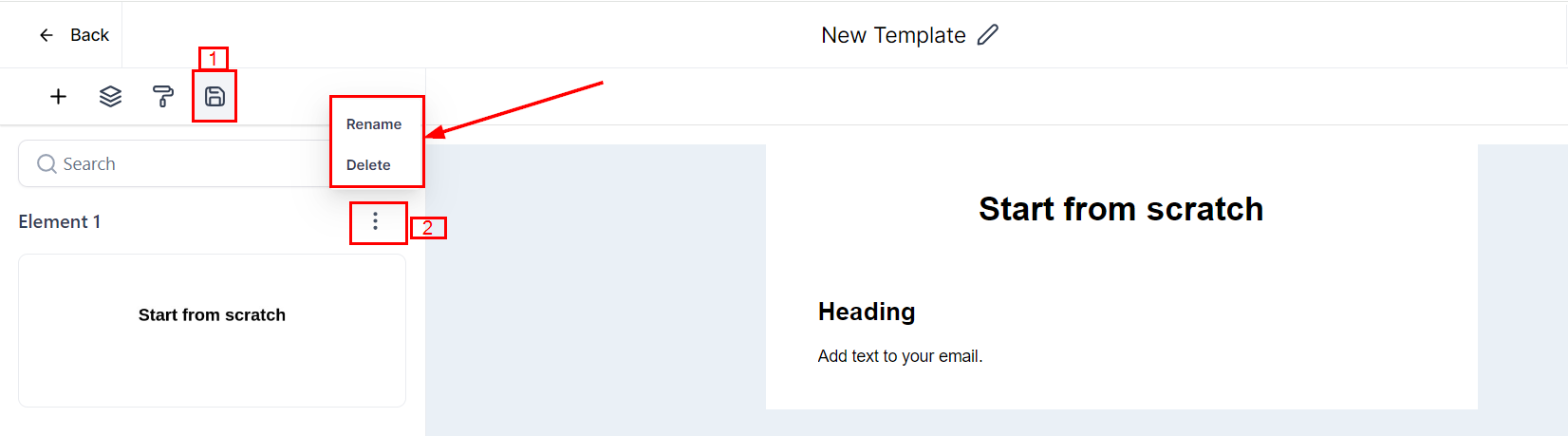
- To view your saved elements, locate the ‘Saved Items’ section. Here, you can manage your elements by renaming or deleting them as needed.
Reusing Saved Elements:
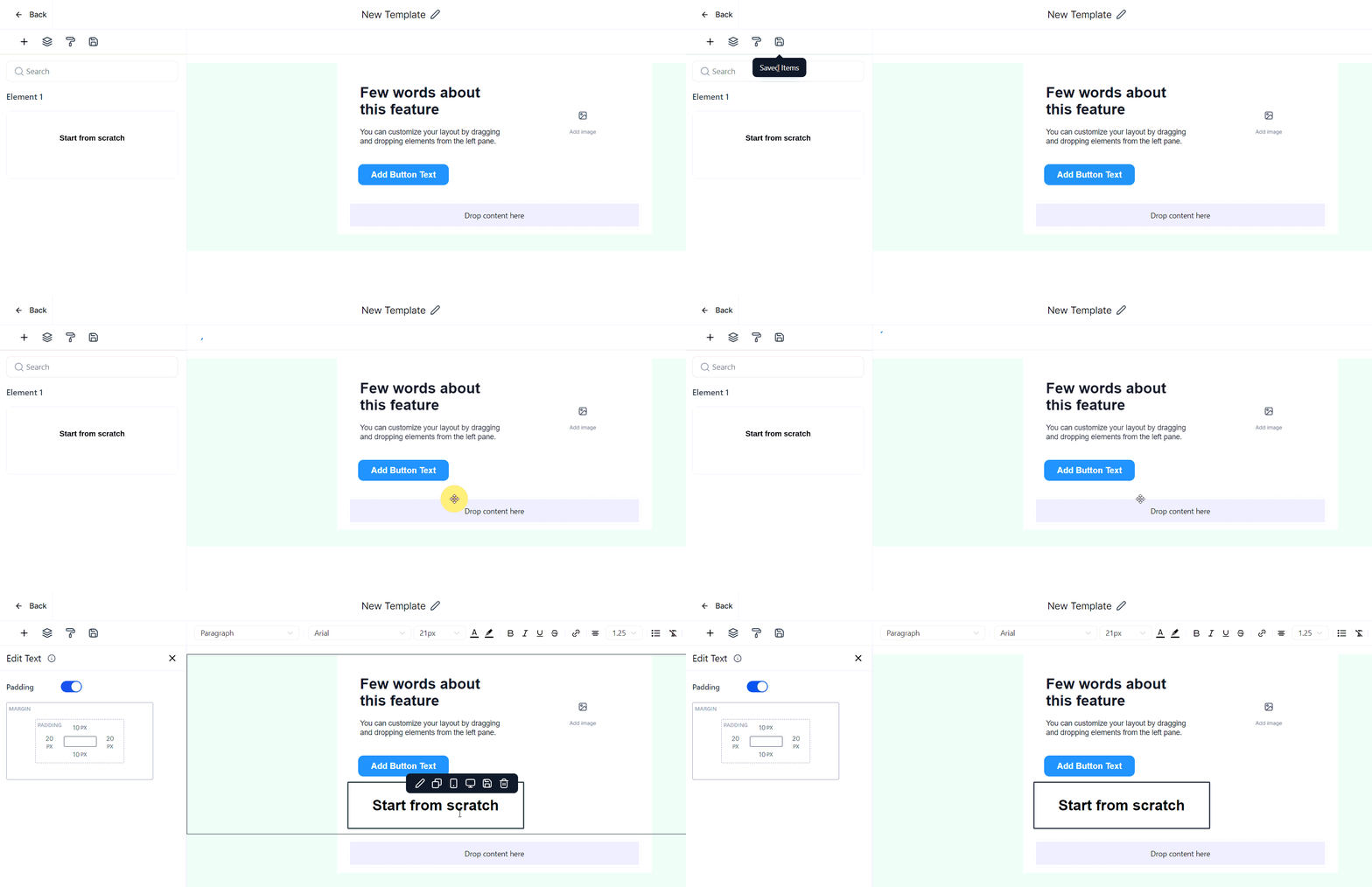
- When creating or editing an email template, click on the ‘Saved Items’ section to access your previously saved elements.
- Simply drag and drop your desired element into the new template. This seamless integration allows for efficient template customization.
Practical Examples and Use Cases
Imagine you’re launching a series of campaigns requiring a consistent look and feel across all email communications. By saving elements like your branded header and footer, you can quickly populate new templates without the need to recreate these components each time. This not only speeds up the creation process but also ensures brand consistency.
Troubleshooting Tips and FAQs
Q: I saved an element, but it’s not appearing in my ‘Saved Items’. What should I do?
- A: Ensure you’ve successfully clicked the save icon and wait a few moments for the system to update. If the problem persists, try refreshing the page or checking your internet connection.
Q: Can I share saved elements with other users on my team?
- A: Currently, saved elements are accessible to the user who created them. Sharing capabilities may vary based on the CRM’s updates and settings.
Q: How many elements can I save?
- A: While there’s no strict limit, it’s advisable to manage your saved elements regularly to ensure your ‘Saved Items’ section remains organized and efficient.